News·
How squads work
Create or join a squad, Start Squad Sync, see live dots, tap a unit to navigate. Sharing is opt-in and short-lived. Two or more members cuts the subscription.
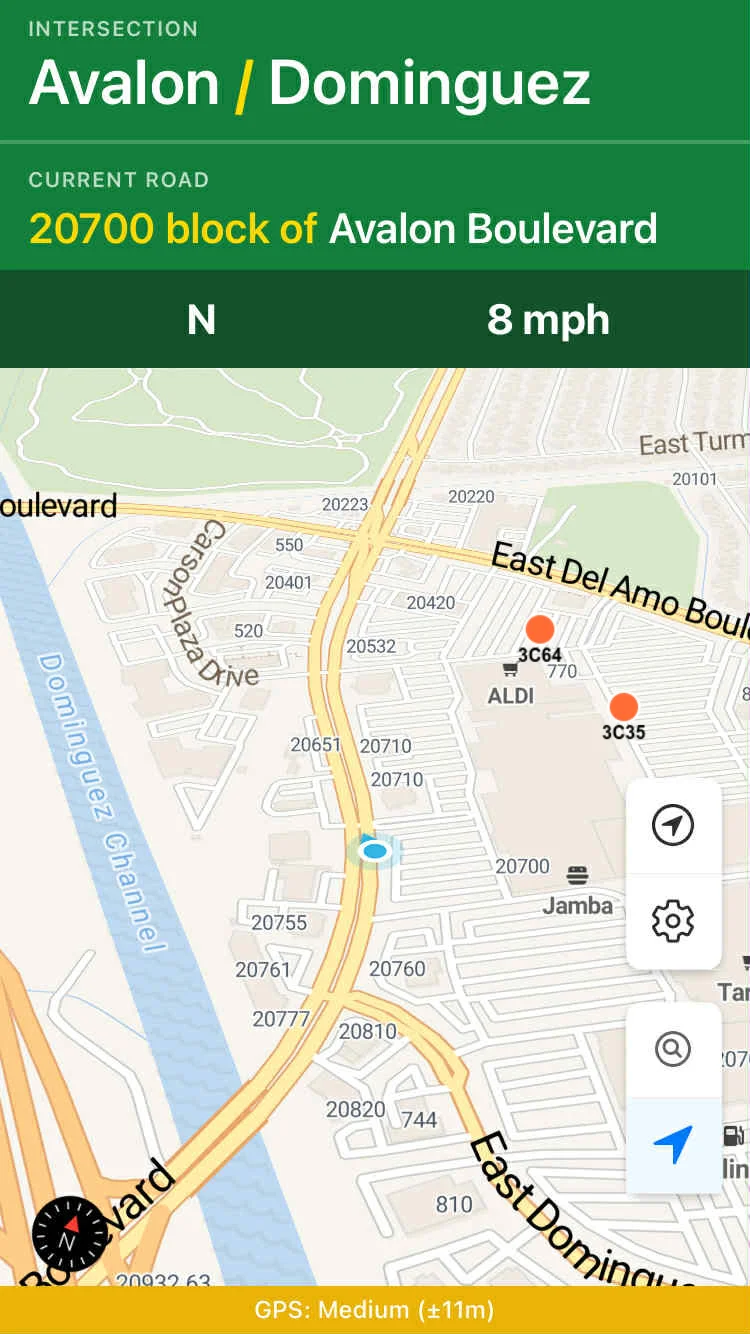
Squads are how PatrolNav shows who is nearby and how you get a cheaper subscription. The map still works if you never join one.
Join, then sync
- Create a squad, or join with an invite code
- Select that squad in Map Settings
- Tap Start Squad Sync
Orange dots are other units on that squad. Your location stays in the center. Tap a unit, then start navigation — two taps when someone needs backup. Routing is traffic-unaware on purpose.
One press starts or stops sharing. CarPlay and Android Auto show squad status on the car screen.
On iPhone, Shortcuts can start or stop the selected squad without opening the map (“Start Squad Sync in PatrolNav”).
What is shared, and for how long
Sharing is opt-in. Location for squad is held in memory on our servers for a short time, then dropped. It is not written to disk, and we do not keep a history. Only authenticated members of that squad can see it.
Leave the app and still share: grant Always location. You can stop anytime with Stop Squad Sync, the shortcut, selecting None as your squad, or revoking the permission.
Two or more
A squad with two or more members cuts the subscription — about 40% off versus flying solo.
On PatrolNav for Web, the desk map can follow one unit or fit everyone who is sharing, using the same login. The browser does not broadcast a location. The phone does.
For departments that want this on every car, use the contact form.